Youth Soccer Team & Roster Management: Getting Your Team Set Up
Before you can manage a game, you need a team. MatchdayIQ makes it quick to set up your roster, configure your default formation, and keep your player list organized throughout the season. Most coaches are set up and ready to go in under five minutes.
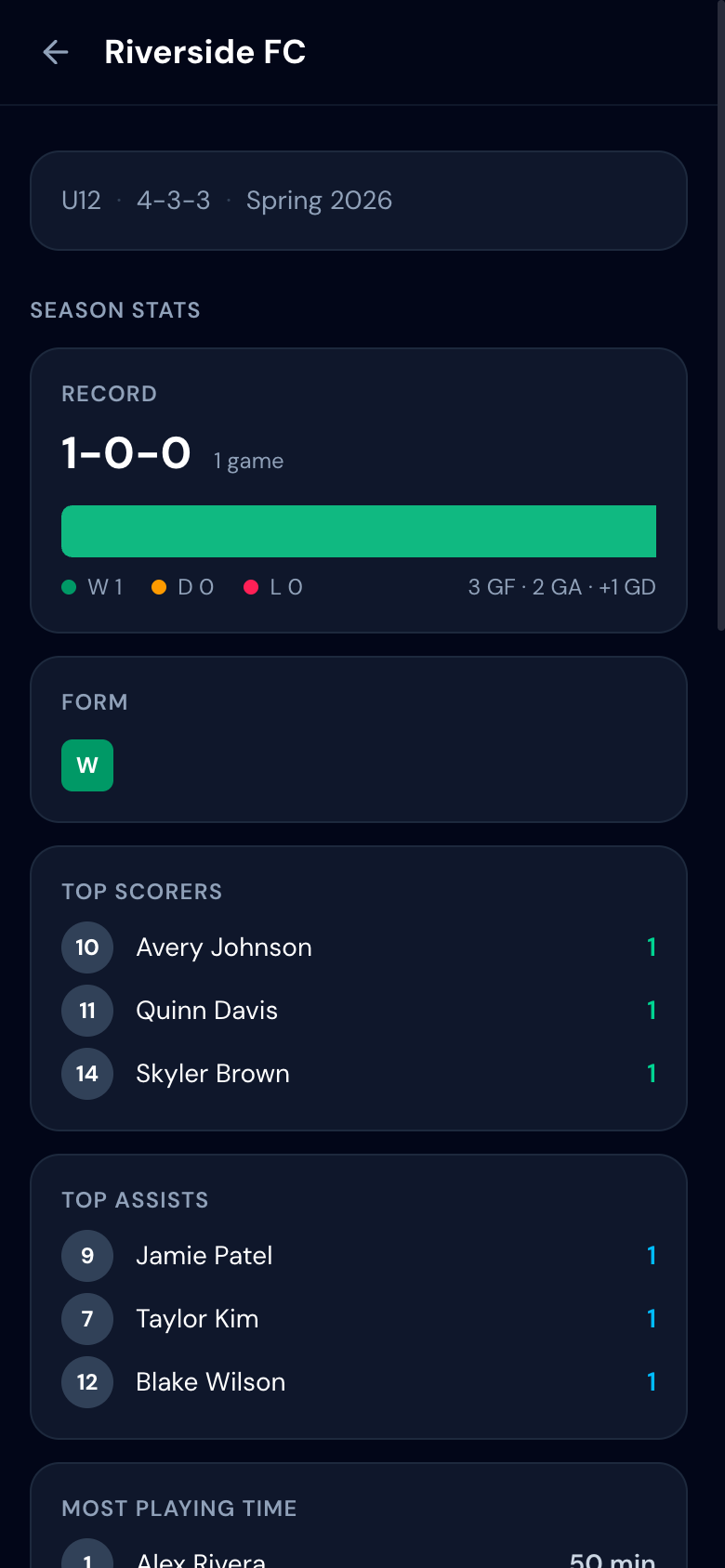
Creating Your Team
After signing up, tap "Create Team" on the dashboard. Enter your team name, age group (U8 through U18), season name, and game size (7v7, 9v9, or 11v11). The game size determines which formations are available and how many field positions you'll fill in the lineup builder.
- 1.Tap "Create Team" from the dashboard
- 2.Enter team name, age group, and season
- 3.Select your game size (7v7, 9v9, or 11v11)
- 4.Pick a default formation — you can change it per game
Adding Players
Add players one at a time with their name, jersey number, and preferred position. The preferred position helps the auto-fill feature in the lineup builder assign players to their best slots. You can also add players without a position and assign them manually each game.
- +Jersey numbers appear on the field diagram during games
- +Preferred positions power the auto-fill lineup feature
- +Mark players as inactive if they leave the team mid-season
Managing Seasons
When a new season starts, you can clone your existing roster into a new team instead of rebuilding from scratch. Update the season name, adjust the roster for any new or departing players, and you're ready. Game history from previous seasons stays intact on the original team.
Player Availability
On game day, mark players as unavailable before you start building your lineup. This keeps your bench clean and ensures your rotation math only counts players who are actually at the field. Once you're set, head to the game day screen to start your match.
Set up your team in under 5 minutes